How to Build a Homelab Server From Scratch: The Ultimate Guide
Sick of seeing monthly subscription fees pile up for cloud storage, media streaming, and web hosting? You’re definitely not alone. Figuring out how to build a homelab server from scratch is the ultimate way to take back control of your digital life.
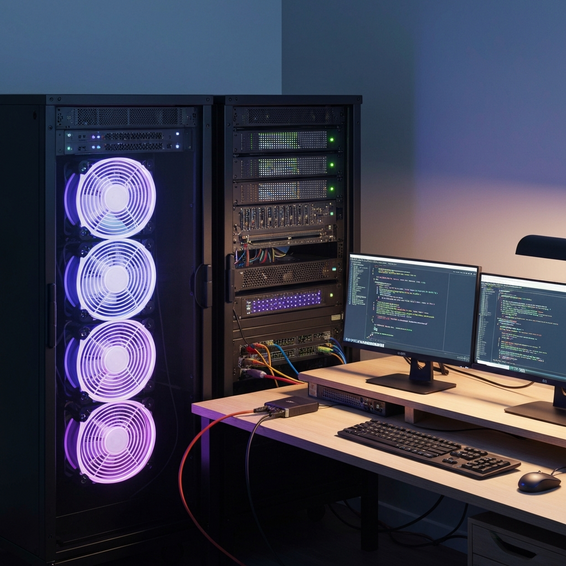
Think of a homelab as your personal tech sandbox. It’s a dedicated space where you can self-host applications, test out enterprise-grade software, and seriously level up your IT skills. Whether you work as a DevOps engineer, write code for a living, or just love tinkering with technology, putting together a home server is an incredibly rewarding project.
In this guide, we’ll walk through exactly how to build a homelab server from scratch. We’ll cover everything from picking the right hardware and setting up virtualization to locking down network security—plus the best practices you need to keep your self-hosted system running smoothly for years to come.
Why This Problem Happens: The Push Toward Self-Hosting
Over the last decade or so, the tech world has moved almost entirely into the cloud. Sure, this managed approach is incredibly convenient, but it has also created a handful of frustrating problems for everyday consumers and developers alike.
For starters, handing everything over to public clouds effectively strips away your data privacy. Whenever your personal files, family photos, and databases sit on someone else’s servers, you’re suddenly bound by their terms of service. You also expose yourself to potential corporate data breaches and the risk of arbitrary account bans.
On top of that, subscription fatigue has become a very real financial burden. Paying separately for cloud drive storage, music streaming, video platforms, and web hosting can easily drain hundreds of dollars from your bank account every month. Building your own dedicated home server setup practically eliminates those recurring costs.
Finally, leaning entirely on managed cloud services limits your ability to learn. If you actually want to understand how networking, infrastructure automation, and containerization work, you need hands-on experience. That’s exactly why having a private, self-hosted environment is so valuable.
Quick Fixes / Basic Solutions: Setting Up Your First Server
Looking for a fast, straightforward answer to how to build a homelab server from scratch? Follow these fundamental steps, and you’ll have your very first machine up and running in no time.
- Choose Your Hardware: Don’t worry—you don’t need a massive, expensive enterprise server rack just to get started. A refurbished Dell OptiPlex micro PC, a compact Intel NUC, or even an old laptop with a shattered screen can make a perfectly capable beginner server.
- Select a Base Operating System: Skip the bulky desktop operating systems that eat up system resources. Instead, install a lightweight, headless Linux distribution like Ubuntu Server or Debian to maximize your hardware’s performance and long-term stability.
- Configure a Static IP: Hop into your router settings and assign a static IP address to your new machine. This guarantees that your server will always be accessible at the exact same location on your network.
- Set Up SSH Access: By installing OpenSSH, you can manage your server remotely right from your daily computer. This means you won’t need to keep a separate monitor and keyboard plugged into the server itself.
- Install Docker: Think of Docker as the backbone of modern self-hosting. Once you install Docker and Docker Compose, you can effortlessly deploy popular services like Pi-hole, Nextcloud, and Jellyfin with very little configuration.
Completing these basic steps will leave you with a fully functional Linux server. From there, you can start spinning up individual applications using simple container commands, allowing you to finally reclaim your digital independence.
Advanced Solutions: Hypervisors and Virtualization
Once you’ve mastered the basics, there’s a good chance you’ll outgrow a simple, single-OS setup. This is where virtualization comes in, allowing advanced home network engineers to run multiple isolated operating systems simultaneously on a single physical machine.
1. Install a Type-1 Hypervisor
Rather than installing Ubuntu directly onto your bare metal hardware, you can step things up by installing a Type-1 hypervisor like Proxmox VE, XCP-ng, or VMware ESXi. This hypervisor acts as the foundational operating layer for everything else.
Operating this way allows you to efficiently spin up dozens of virtual machines (VMs) and lightweight Linux containers (LXC) on the fly. Right now, Proxmox VE is widely considered the industry standard for home server environments. Not only is it free and open-source, but it also features a highly intuitive web GUI that makes managing your infrastructure a breeze.
2. Implement Reverse Proxies
As you start hosting more web services, trying to access them via raw IP addresses and port numbers (like 192.168.1.10:8080) gets messy fast. A much cleaner, advanced solution involves configuring a reverse proxy such as Nginx Proxy Manager, Caddy, or Traefik.
A reverse proxy essentially acts as a traffic cop, routing incoming web requests to the correct Docker container based on the domain name. This setup allows you to access your apps seamlessly using local DNS, letting you type something simple like media.homelab.local instead of a clunky IP string.
3. Infrastructure as Code (IaC)
If you want to take a true DevOps approach, it’s time to stop configuring your server manually. By leveraging Infrastructure as Code (IaC) tools like Ansible or Terraform, you can document and automate your entire homelab deployment from the ground up.
With a tool like Ansible, you write “playbooks” that automatically handle installing necessary packages, updating the OS, and deploying your complete container stack—all triggered by a single terminal command. If you want to dive deeper into IaC workflows, be sure to check out our infrastructure automation guides.
Best Practices for Your Homelab Server
Getting your homelab built is really only half the battle; keeping it secure and well-maintained is just as crucial. Following these optimization and security best practices will help ensure your setup runs reliably over the long haul.
Network Segmentation
You should never expose your homelab directly to the public internet without putting the right protections in place first. One of the best ways to do this is by using Virtual Local Area Networks (VLANs) to physically separate your home server traffic from the rest of your everyday home network devices.
This way, if a vulnerable self-hosted app happens to get compromised by an external threat, the VLAN acts as a digital wall. It stops attackers from pivoting and accessing your personal laptops, smartphones, or smart home gadgets.
The 3-2-1 Backup Strategy
Hardware fails—it’s an inevitable fact of IT life. It’s never a matter of if a drive will die, but when. To protect your hard work, implement the industry-standard 3-2-1 backup strategy: always keep 3 copies of your data, stored across 2 different media types, with at least 1 copy held safely off-site.
You can use tools like Proxmox Backup Server or automated Rsync scripts to regularly back up your critical VMs to an external Network Attached Storage (NAS) device. For your off-site copy, try syncing encrypted snapshots to an affordable cloud storage provider like Backblaze B2.
Monitoring and Alerting
Running a home server blind is generally a recipe for disaster. That’s why advanced homelabbers deploy comprehensive monitoring stacks to keep a watchful eye on hardware health, available disk space, and overall network throughput.
For simple ping tracking, you can self-host lightweight tools like Uptime Kuma. Or, if you want to go all out, set up a full Prometheus and Grafana stack. This dynamic duo lets you build gorgeous, interactive dashboards that visualize everything from CPU temperatures to memory usage in real time.
Recommended Tools / Resources
Successfully navigating how to build a homelab server from scratch is a lot easier when you have the right hardware and software in your corner. Here are some of our top tested recommendations to get you started:
- Compute Hardware: Beelink SER5 Mini PC – This is an incredible, low-power machine packed with enough CPU cores to silently run multiple Proxmox VMs without breaking a sweat.
- Mass Storage: WD Red Plus NAS Hard Drives – When it comes to storage, these reliable, long-lasting CMR drives are purpose-built for the rigors of 24/7 continuous home server operation.
- Power Protection: CyberPower UPS Battery Backup – An absolute must-have for protecting your server against sudden power outages and preventing the severe data corruption that usually follows an unexpected shutdown.
- Operating System: Proxmox VE – Hands down, this is the best free, enterprise-grade virtualization environment currently on the market.
- Secure Networking: Tailscale – A fantastic zero-config mesh VPN built on top of WireGuard. It allows you to securely access your homelab remotely without opening up dangerous ports on your router. Feel free to explore our HomeLab tutorials to learn more about setting up secure networking.
FAQ Section
What is the best OS for a homelab?
For most people, the absolute best bare-metal operating system for virtualization is Proxmox VE. However, if you prefer a simpler, strictly container-based approach, you can’t go wrong with standard Ubuntu Server or Debian. Both are incredibly reliable and boast massive community support.
How much RAM do I need for a home server?
If your goal is to simply run lightweight Docker containers—think Pi-hole, a secure password manager, and a personal blog—then 8GB to 16GB of RAM will be more than enough. On the other hand, if you plan to dive into heavy virtualization or run resource-hungry enterprise apps like TrueNAS, you’ll want to aim for somewhere between 32GB and 64GB of RAM.
Is a Raspberry Pi good enough for a homelab?
Absolutely! A Raspberry Pi (especially the Pi 4 or the newer Pi 5) is a fantastic jumping-off point for a beginner homelab. It sips power while effortlessly handling network-wide ad blocking, VPN servers, and basic smart home automation. Just keep in mind that it will definitely struggle if you try to throw heavy media transcoding at it.
What is the difference between a NAS and a Homelab server?
While there’s some overlap, a NAS (Network Attached Storage)—like a Synology device—is primarily built for safe data storage, file sharing, and backups. A homelab server, by contrast, is a general-purpose compute machine designed to tackle heavy processing workloads, run multiple operating systems, and manage complex network configurations.
How do I access my homelab server remotely?
The most secure way to connect to your homelab from outside your home network is through a secure VPN tunnel. Tools like WireGuard, Tailscale, or Cloudflare Tunnels are perfect for this. As a general rule, never open port 80 or 443 directly to the raw internet unless you have strict security measures in place, such as a robust web application firewall.
Conclusion
Figuring out how to build a homelab server from scratch is a total game-changer for any modern tech enthusiast. Not only does it finally break the cycle of expensive cloud subscriptions, but it also gives you a robust, private playground for mastering advanced DevOps, automation, and networking skills.
You don’t have to build Rome in a day. Start small by grabbing an affordable mini PC or just repurposing that old hardware gathering dust in your closet. Install a rock-solid hypervisor like Proxmox, spin up your very first Docker containers, and gradually expand your self-hosted ecosystem over time. Just remember to put strong backups and secure remote access in place so your setup runs flawlessly.
Ready to jump in? Grab your hardware, flash your preferred OS to a USB drive, and take that very first step into the highly rewarding world of personal home servers today.
About the Author